administrators > End-users interface configuration > The search modeler
The search modeler
Introduction
The search modeler is an administrative tool that assists in designing criteria-based search web applications for end-users. Once the AMI ecosystem is properly installed and configured, it allows you to create these interfaces for any referenced database.
Search modeler tool overview
The search modeler interface is divided into two main parts. On the left, there is the “Search interfaces” area where the already configured criteria search interfaces are displayed. On the right, the “Search interface modeler” contains a form for defining new criteria search interfaces.
The search interface modeler form
Defining what to search
Defining what to search is a crucial step in setting up a criteria-based search interface. This typically involves specifying the criteria or parameters that users can use to filter and search for specific data.
To design a new criteria-based search, an administrator must complete the mandatory fields marked with red stars on the form (see Fig1):
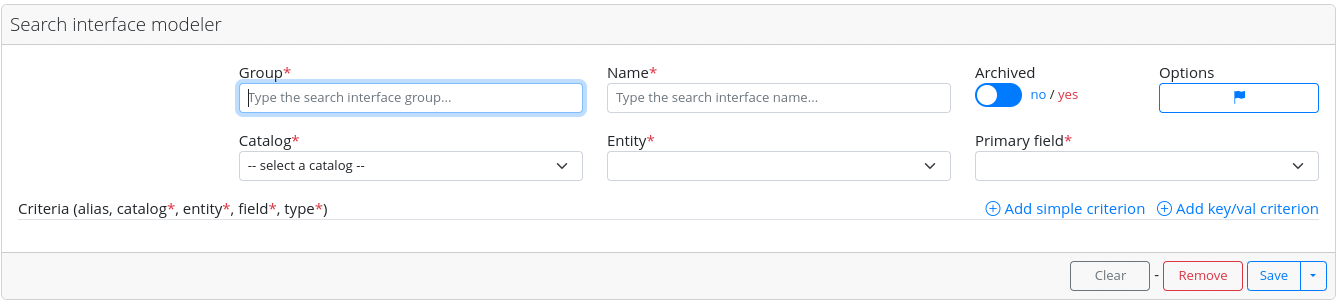
Figure 1. The search interface modeler
- Group: This is a mandatory free-text field representing the “family” of the interface. For end-users, the different search interfaces will appear grouped by family. This parameter determines the group to which the final interface will belong.
- Name: This is a mandatory free-text field used to define the “name” of the search interface as it will appear for end-users.
- Catalogs: This is a list of available catalogs known within the AMI ecosystem. The administrator must select the catalog where the data for the search is located.
- Entity: After selecting the catalog, this field will automatically display all the available searchable entities. The administrator must choose one from the list.
- Primary Field Once the entity is selected, this field will automatically list all the criteria that can be used as a unique identifier for a given data. The administrator must choose one of them.
Some general options are available for a given search interface:
- Archived: A checkbox with two possible values, “yes” or “no”. If “yes” is selected, the search interface will only be accessible to administrators via this tool and will not be displayed to end-users. This is useful for testing criteria search interfaces before exposing them to end-users.
- Options: A button that opens an options modal (see Fig2), which includes the following settings:
- Distinct: If set to “yes”, the search will count as distinct two different records of data but with the same criteria.
- Can edit: If set to “yes”, end-users will be able to edit information directly within the table of results they receive after searching by criteria.
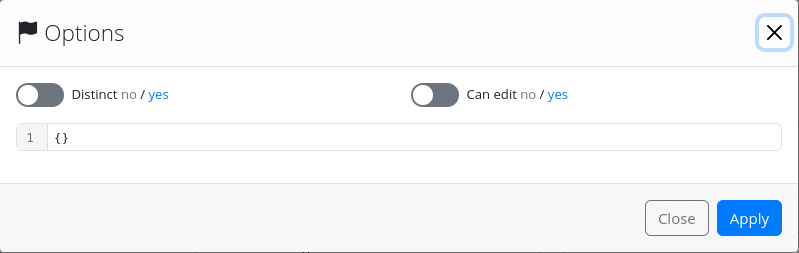
Figure 2. Setting general criteria search options
Declaring a simple criterion
Most of the time, simple criteria are the type of criteria that will be exposed in the end-user’s search interface. To define such a criterion, the administrator needs to click on “Add simple criterion” (see Fig. 3).

Figure 3. Adding a simple criterion
It will bring up a new form “line” where the administrator must set the following:
- alias: An optional alias, i.e., the name of the criterion as it will appear in the end-user’s search interface. If not set, the name of the criterion will be the same as that of the entity.
- catalog: The administrator must choose from a list of possible catalogs where the data related to the desired criterion can be found.
- entity: Once the catalog is chosen, the administrator must select the entity where the data for the desired criterion can be found.
- field: After selecting the entity, the administrator must choose the field corresponding to the desired end-user search criterion.
- type: The type determines how the criterion will be graphically exposed to end-users in the search interface.
This choice depends on the type of data and the size of the set of possible values for this criterion.
An administrator must select the appropriate criterion type to ensure it appears correctly for end-users:
- text (few result): The possible values for the criterion are a small set of text values.
- text (many result): The possible values for the criterion are a large set of text values.
- number:The criterion is a number.
- date: The criterion is a date.
- boolean: The criterion is a boolean.
- json key/val (few result): The possible values for the criterion are a small set of JSON dictionaries.
- json key/val (many result): The possible values for the criterion are a large set of JSON dictionaries.
Note that each criteria can be removed individually by clicking on the red trash icon at the end of the criteria form “line”.
Declaring a Key/Value criterion
Key/value criteria will be less frequently used as they correspond to a very specific database structure. Please note that this is an experimental feature that has not been fully tested yet. To add a key/value criterion, an administrator must click on “Add Key/Value Criterion” (see Figure 4).

Figure 4. Adding a Key/Value criterion
It will bring up a new form “line” where the administrator must set the following:
- alias: An optional alias, i.e., the name of the criterion as it will appear in the end-user’s search interface. If not set, the name of the criterion will be the same as that of the entity.
- catalog: The administrator must choose from a list of possible catalogs where the data related to the desired criterion can be found.
- entity: Once the catalog is chosen, the administrator must select the entity where the data for the desired criterion can be found.
- fields: This is the main difference with the simple criterion mode.
After selecting the entity, the administrator must choose two fields related to the desired criterion.
Their significance is different depending on the system type that will be selected afterward:
- simple key/val system: On the top select list, the administrator indicates what field of the chosen entity is the “key”. On the bottom select, the administrator indicates what field of the chosen entity is the “value”.
- multiple key/val system: In this case, the key/value data is stored in a special table structure. This table has several fields. One of these fields corresponds to the key and should be set in the top selection list. The other columns correspond to possible values of a given type (one column per type…). The administrator must choose the type of values that will be exposed to the end user by choosing the appropriate column in the bottom select list.
- type: There are four types belonging to two main key/value systems.
- simple key/val (few result): Simple key/val system with few number of possible results.
- simple key/val (many result): Simple key/val system with large number of possible results.
- multiple key/val (few result): Special table key/val system with few number of possible results.
- multiple key/val (many result): Special table key/val system with large number of possible results.
Configuring criterion options
An administrator can fine-tune any added criteria by clicking on the blue flag button at the end of each criteria “line.” This action will open a modal where various options can be configured, depending on the type of criterion (see Figure 5).
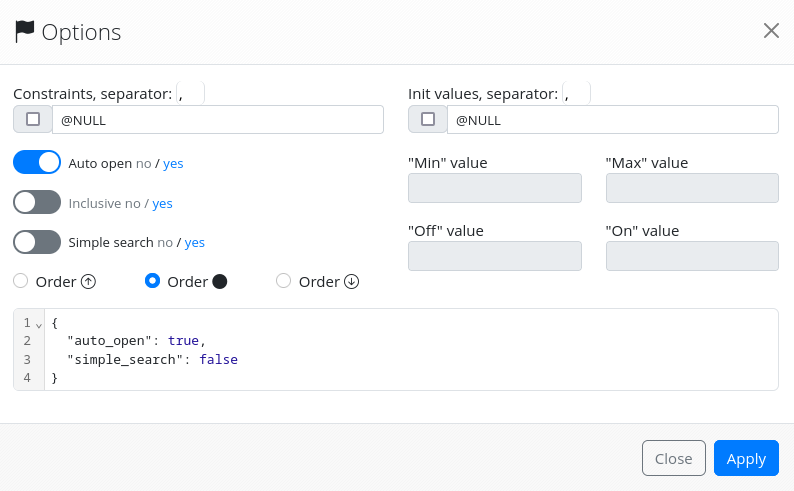
Figure 5. Configuring criterion options
The available options are:
- Constraints: By filling in this optional text field, an administrator can restrict the set of possible data that the AMI ecosystem will expose as possible values by configuring a list of [!][[catalogue.]entity.]field items. This feature allows for assigning different meanings to the exposed data within a given set of values, depending on the context, as explained in the MQL concepts documentation
- Init values: By filling in this optional text field, an administrator can configure, for a given criterion, a list of values that will be selected by default if the end-user wants to use this criterion in a search.
- Auto-open: A radio button (no/yes) to expose by default the list of possible values of a search criterion to end-users.
- Inclusive, “Off” value, “On” value:
A radio button (no/yes) is available only for boolean criteria and works in conjunction with the “Off” value and “On” value text fields.
It corresponds to two different search modes for the criterion:
- yes: The end user will see two value choices as defined in the “Off” and “On” value fields. If “Off” is selected, all possible values will be considered in the search. If “On” is selected, only the defined “On” value will be searched.
- no: The end user will see two value choices as defined in the “Off” and “On” value fields. If “Off” is selected, only the defined “Off” value will be searched. If “On” is selected, only the defined “On” value will be searched.
- “Min” value, “Max” value: This option applies only to number or date criteria. An administrator can define the range of possible criterion values that will be selected by default for the end-user by specifying two “Min” and “Max” limits.
- Order: Three radio buttons that an administrator can use to determine whether the possible values exposed to the end-users are displayed in an ordered manner or not (the default is not ordered).
- Simple search: The administrator can define here whether a Google-like search interface by the given criterion will be available to end-users.
- JSON: The criterion options are saved as a JSON dictionary that is displayed in the bottom text area. Options can also be set by directly modifying the JSON dictionary in the text area.
Saving/Editing/Deleting a configuration
At the bottom left, there are three buttons (see Fig. 6):

Figure 6. Saving/Editing/Deleting configurations
- Clear: Clicking on this button will clear all the fields of the current configuration form.
- Remove: If an already configured interface is edited, clicking on the “Remove” button will delete it.
- Save: Clicking on “Save” will save the configuration and make the search interface appear in the “Search Interfaces” list on the right. Note that if the “archived” option is not selected, the interface will be immediately accessible to end-users.
The search interface list form
On the left of the Search Modeler, the administrator has the list of already configured search interfaces under “Search Interfaces” (see Figure 7).
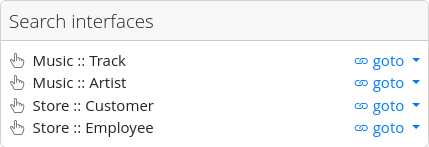
Figure 7. Configured search interface list
The list item format is [Group]::[Interface Name]. Clicking on an item will display all the already configured criteria in the “Search Interface Modeler” on the left, allowing an administrator to check or edit them. At the end of each item row, there is a drop-down menu labeled “goto,” where an administrator can check the configured interfaces (criteria search and simple search) from an end-user point of view. All the items in the list are draggable and can be reordered by an administrator, so they appear in the desired order for end-users.
- Prev
- The schema viewer
- Next
- The criteria search