administrators > Managing AMI ecosystem metadata > The catalog administration tool
The catalog administration tool
Introduction
The catalog administration tool is an administrative tool designed to assist in declaring and managing various catalogs accessible throughout the entire ecosystem. Once the AMI ecosystem is properly installed and configured, it automatically detects the structure of all declared catalogs, making their data accessible to end-users through generic interfaces or by utilizing MQL or SQL languages to query the data through clients.
Catalog administration tool overview
The catalog administration tool shows 4 tabs with 4 sub-tools:
- Catalogs: This tab allows administrators to declare or set up database catalogs.
- Entities: In this section, administrators can view and add properties for catalogs’ entities that cannot be automatically detected by the ecosystem. Tables declared as bridges between two other tables, usually identified using the schema viewer, are listed here.
- Fields: Administrators can view and add properties for entity fields that are not automatically detected by the ecosystem. Any specific configurations made with the schema viewer tool regarding a field (such as encryption, hashing, position, etc.) that differ from the default AMI settings are listed here.
- Foreign Keys: This tab lists the virtual primary keys and foreign keys defined, typically using the schema viewer tool, to emulate a relationship between a table and a view.
Interface components
Regardless of the selected tab, three consistent graphical components are present as “boxes” (refer to Figure 1).
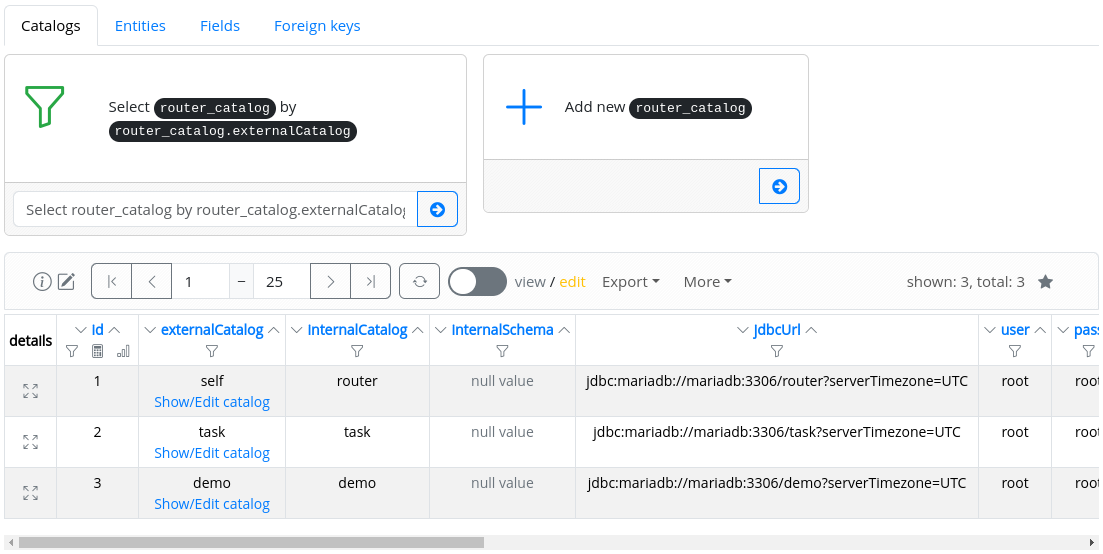
Figure 1. The catalog administration tool “boxes”
In the upper-left box (refer to Figure 2), the tab selector facilitates the choice of the appropriate sub-tool.
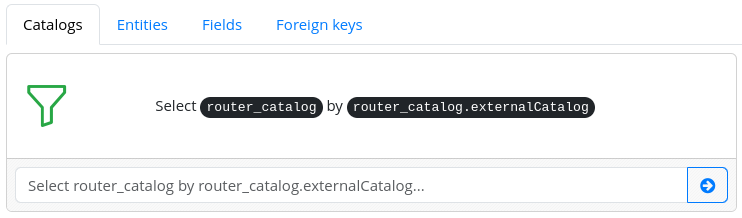
Figure 2. Selecting the appropriate sub-tool
Adjacent to the filter icon, a reminder of the default selection is provided to display data from the central AMI database concerning catalogs, entities, fields, and foreign keys:
- Catalogs: Select router_catalog by router_catalog.externalCatalog
- Entities: Select router_entity by router_entity.entity
- Fields: Select router_field by router_field.field
- Foreign Keys: Select router_foreign_key by router_foreign_key.name
At the bottom of the components, a Google-like text search enables filtering the list of existing rows shown in the bottom result table based on a given field value.
In the upper-right corner (refer to Figure 3), an adder component is located.
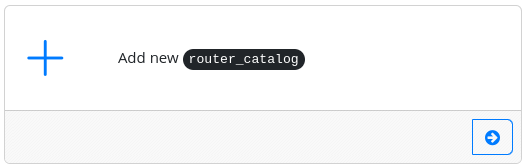
Figure 3. The adder component
Clicking on the arrow reveals a modal form with fields to add a catalog, an entity, a field, or primary/foreign keys. Administrators typically use this to declare a new catalog (see Figure 4) or declare virtual primary/foreign keys (see Figure 5). Other data is often added when configuring fields with the schema viewer tool.
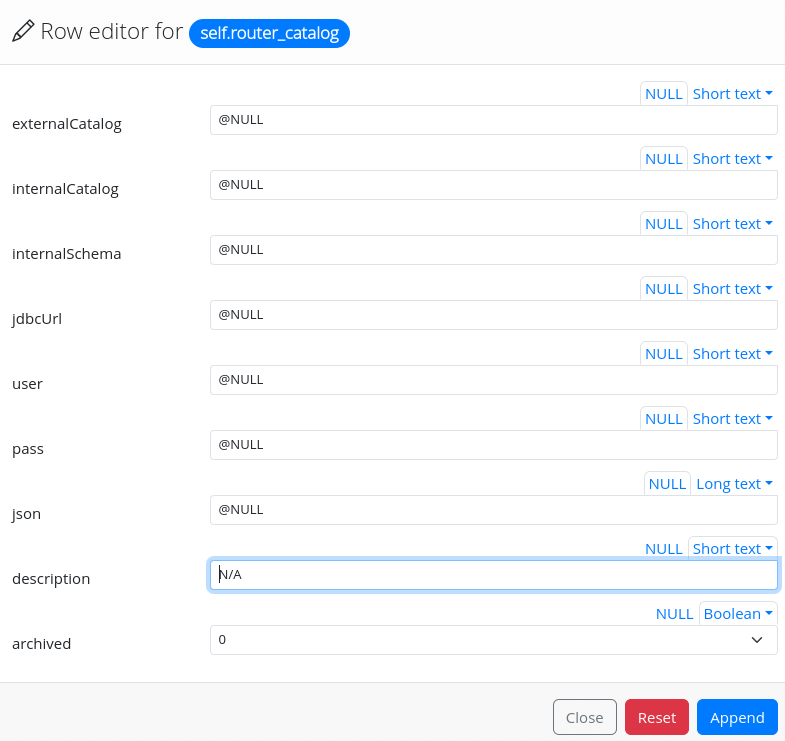
Figure 4. The new catalog declaration form
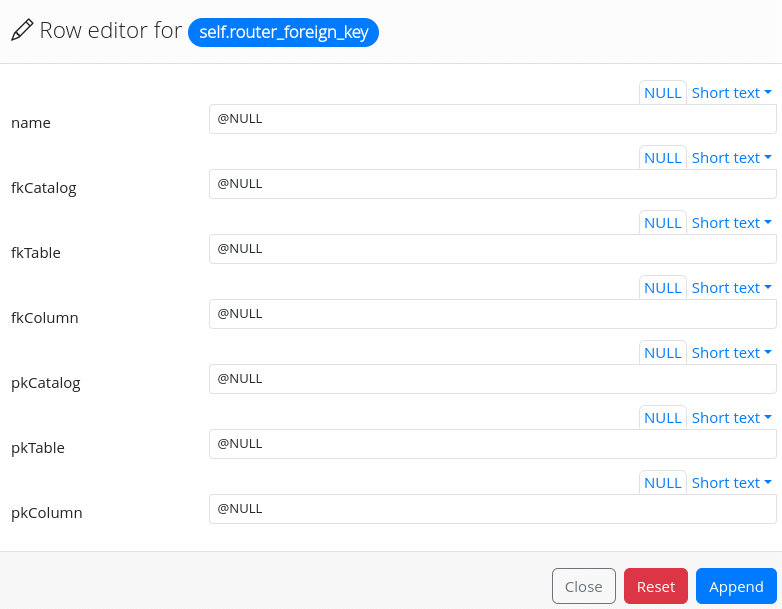
Figure 5. The virtual primary/foreign keys declaration form
At the bottom (refer to Figure 6), a table component displays already defined data, the results of a filter query, and facilitates navigation within the result set. Notably, under field values referencing a catalog, a “Show/Edit catalog” Web link allows administrators to open the corresponding schema in the schema viewer tool, where most of the catalog’s fine settings can be configured.
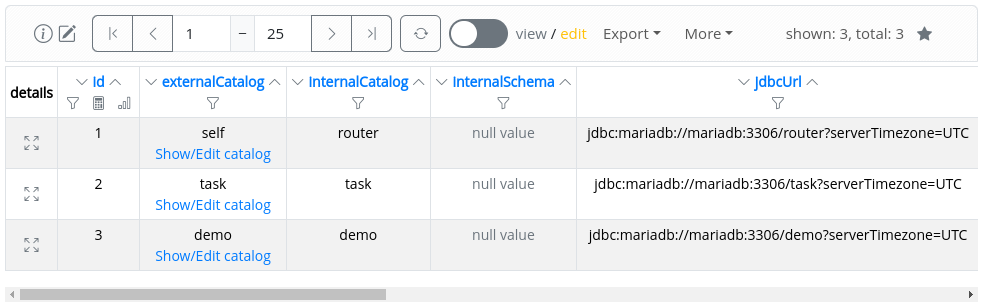
Figure 6. The table component
- Prev
- The admin dashboard
- Next
- The schema viewer